On the Apps page (Located in the bottom left), click Install Apps > Microsoft 365 apps (Located in the top right).
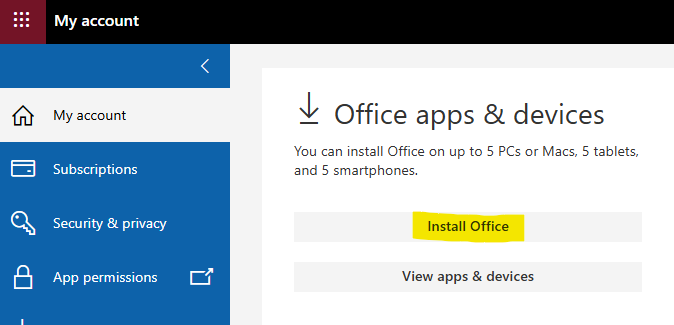
Click the button Install Office.
Image
It will download the OfficeSetup.exe file. Run this file and let the installation finish.
Image
Once finished, sign in to a Microsoft app using your Pierce College network email
and password. This will allow you to use the Microsoft 365 Suite from your device.